Quickly create an new ISO file or an new CD/DVD
1. Click menu "Files" ->"New" to choose which type of ISO image you want to create
Data CD/DVD image: The new ISO image contains two file systems - ISO 9660 and Joliet. This ISO image or CD/DVD burnt with this ISO image can be read on Microsoft Windows.
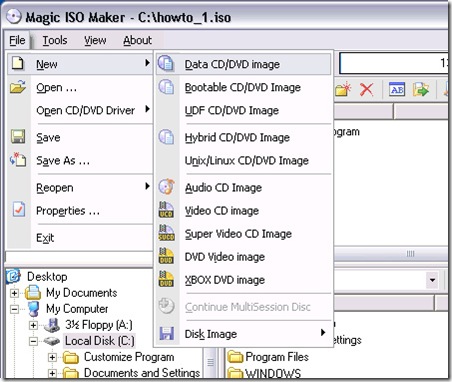
Bootable CD/DVD image: Create a bootable ISO image with choosing bootable image file that can be get from bootable floppy disk or another bootable ISO image. The new ISO image contains two file systems - ISO 9660 and Joliet. This ISO image or CD/DVD burnt with this ISO image can be read on Microsoft Windows.
UDF CD/DVD image: Create UDF-ONLY ISO image.
Hybrid CD/DVD image: The new ISO image contains four file systems - ISO 9660, Joliet, UDF and Apple HFS+. The ISO image or CD/DVD burnt with this ISO image can be read on Microsoft Windows and Mac OS X.
Unix/Linux CD/DVD image: The new ISO image contains three files systems - ISO 9660, Joliet and RockRidge. The ISO image or CD/DVD burnt with this ISO image can be read on Microsoft Windows ,Linux and Unix.
2. Dragging files or directories from Local Browser into ISO Panel. or click the button " or
or  to add files or directories.
3. Click  to create an new folder. Then enter the folder name.
4. Click  to delete files or folders.
5. Press F2 or click  to rename file name, folder name or volume name.
>>For creating an new ISO image.
6. Click  to save in ISO image.
>>For creating an new CD or DVD.
6. Click  to burn CD/DVD on-the-fly.
7. Choose your CD/DVD recorder, Choose write speed. Important: you must remember to clear the "Finalize CD" checkbox if you need to write data onto this CD or DVD later. With a Multisession CD or DVD, this checkbox is only checked for the last session of the CD or DVD. This setting write protects the CD or DVD and no further writing is possible.
8. Click "Burn it!" button to start the burn process.


Version - 5.5(build 274) Mirror Link
Using MagicISO to edit ISO file
1. Click  to open ISO file or choose File menu and Click Open Command.
2. Dragging files or directories from Local Browser into ISO Panel. or click the button " or to add files or directories.
3. Click to create an new folder. Then enter the folder name.
4. Click to delete files or folders.
5. Press F2 or click to rename file name, folder name or volume name.
6. Click to save in ISO image.
>>For creating an new CD.
6. Click to burn CD/DVD on-the-fly.
7. Choose your CD/DVD recorder, Choose write speed. Important: you must remember to clear the "Finalize CD" checkbox if you need to write data onto this CD or DVD later. With a Multisession CD or DVD, this checkbox is only checked for the last session of the CD or DVD. This setting write protects the CD or DVD and no further writing is possible.
8. Click "Burn it!" button to start the burn process.

Version - 5.5(build 274) Mirror Link
Make ISO from CD/DVD-ROM
1. Click Menu "Tools"->"Make ISO from CD/DVD-ROM"
2. Choose "Source CD/DVD-ROM"
3. Enter output file name
4. Choose output format for your CD/DVD.
Standard ISO image file (.ISO): It is used for All kind of DVD Disc and Data CD with single track.
BIN image file (.BIN/.CUE): It is used for Audio CD, Video CD, Super Video CD and all CD with single session.
NRG image file (.NRG): It is used for All kind of CD (include Audio CD, Video CD, Super Video CD and Data CD etc.)
Universal Image Format ( *.UIF): It is used for all kind of CD and DVD. It is strongly recommended for backuping your CD or DVD. Read here to learn more.
5. If you choose "Universal Image Format(*.UIF)" as output format, you can enter password for protecting your image file.
6. Click "Ok" to process.

Version - 5.5(build 274) Mirror Link
Extract boot image from CD/DVD-ROM
1. Click Menu "Tools"->"Make ISO from CD/DVD-ROM"
2. Choose "Source CD/DVD-ROM"
3. Enter output file name.
4. Check "Export Boot Image".
5. Click Ok button to process.
Make boot image from floppy disk
1. Click menu "Tools"->" Make boot image from floppy disk"
2. Enter the name of bootable image file to save.
Make bootable ISO image
1. Open an ISO image.
2. Click  to set boot image file.
3. Click  button to save ISO file.
Convert CD/DVD image
1. Click menu "Tools"->"Convert ..."
2. Enter source file name, Choose output format, Enter output file
3. Click "Convert" Click here to learn about how to convert .DMG to ISO image.
Burn CD/DVD with CD/DVD image file
1. Click  to open "Burn CD!" Dialog
2. Choose CD/DVD-Writer
3. Enter CD/DVD image filename
4. Choose writing speed.
5. Click "Burn it!"

Version - 5.5(build 274) Mirror Link
- JMD Computer
* if Link is Broken, fill free form click here with Link Details.
Source:- http://www.magiciso.com/howto/howto.htm


